How to Translate Your Interactive Map and Reach More People
Make your map welcoming in more languages. Learn how to translate labels, info cards, and filters in Layerpin, review each language, and publish one map for a wider audience.
Layerpin Team
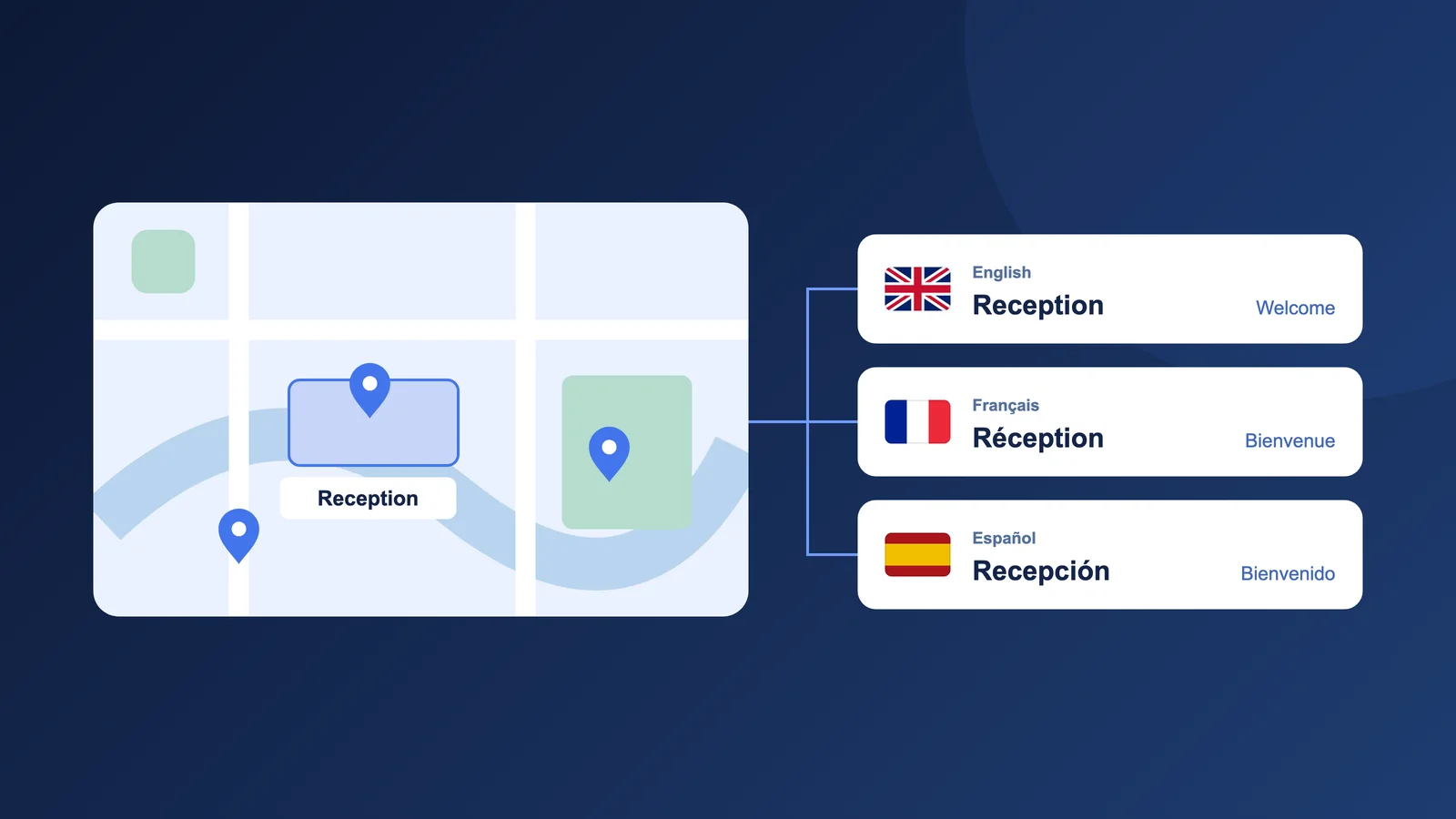
Help every visitor feel that your map was made for them
A map can show someone exactly where to go, but the words around it explain why they should go there. A visitor might recognize a building or a room without understanding its opening hours, accessibility information, or booking button. Translating those details helps them move from looking at your map to taking their next step.
Think of an international guest finding the entrance to your resort, a family comparing homes from another country, or an attendee choosing a session at your event. Clear information in a familiar language makes your map more welcoming and gives people fewer reasons to stop and ask for help.
With Layerpin, you can keep one map with the same locations and shapes, then add translated content for different audiences. Visitors choose a language instead of navigating separate copies of your map.
Start with the languages your audience actually needs
Start with the people who already visit your venue, website, or community. Which languages appear in customer enquiries, event registrations, or conversations with your team? One carefully reviewed translation is more useful than several unfinished versions.
Multilingual maps are available on paid plans. Basic supports 2 languages per map, Pro supports 5, and Premium supports all available map languages. These allowances include the original language. Trial maps use one original language without translation settings or a visitor language picker. Compare the current limits on the pricing page.
When creating a map on a paid plan, choose its Original content language. This describes the language you will write the original content in; it does not translate your writing. Choose carefully because the original language cannot be changed after the map is created.
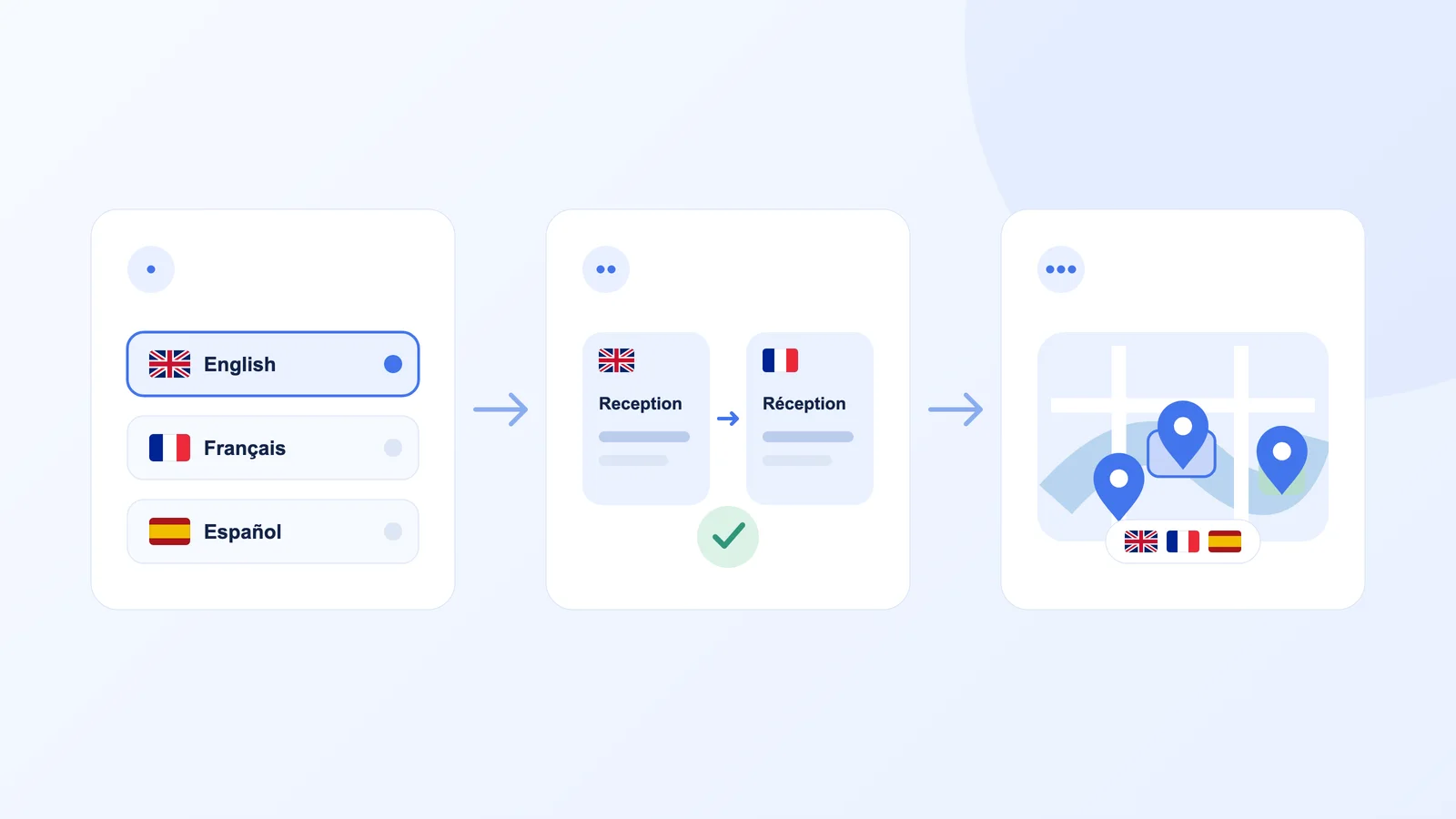
Add languages and set up the visitor picker
Open your map in the editor and go to Customize → View → Map Language. You can also open Translate in the sidebar and use its Languages button to reach the language settings.
Adding a language makes it available for translation; it does not automatically translate the map. Give each language time for writing and review before inviting visitors to use it.
- 1Add the languages you want to support, within your plan’s allowance. The original language stays available.
- 2Drag the languages into the order you want visitors to see in the picker. Put your most relevant languages near the top.
- 3Choose a default language as the fallback for visitors. A supported language requested in the link or chosen by the visitor can take priority.
- 4Enable Show Language Picker. With at least two languages configured, visitors can choose a language on read-only, published, and embedded maps.
Translate the whole experience, not just the item names
Open Translate and select a target language. The panel groups content into Items, Filters, and Details. Work through each group so the map title, the choices visitors make, and the information they open tell the same story.
For items, review names, descriptions, text shapes, tags, field titles and values, and button labels where those fields exist. Include attached media names, descriptions, alternative text, and tags. For filters, translate the group names, descriptions, option names, and option descriptions. Use Details for the map name and description.
For example, translating a room name is only the start. A visitor may also need to understand ‘Seats 12’, ‘Step-free access’, and ‘Book this room’. Keep room numbers, addresses, product codes, and proper names unchanged when translating them would make the location harder to identify.
Missing translations fall back to the original content. This lets you work gradually, but check for unexpected language mixing before publishing. Text painted into the map image itself is not translated. Use editable labels or text shapes for wording that needs to change with the visitor’s language.
Use Pinny for a first draft, then review the details
If Pinny is available for your account and you have configured a supported provider key, you can ask it to prepare translations. Try: ‘Translate all filters and item content into French. Include tags, fields, buttons, and media descriptions. Keep room numbers and proper names unchanged.’ Your model provider bills your API key separately.
Pinny prepares a proposal for you to review. When a response includes several languages, use the language badges on the card to change the preview, or open the review dialog and switch languages there. Check the actual records and fields instead of relying only on the assistant’s summary.
Apply one language or all the proposed languages to your draft after reviewing them. AI can help with the first pass, but ask a fluent speaker to check important directions, safety information, accessibility details, and calls to action. Publishing remains a separate step.
Review each language as a visitor would
Use the editor’s language selector to preview a translated version. Selecting a language alone does not change or save your content. Return to the original language when you want to review the original wording.
Check the full journey: open the map, choose a filter, select a location, read its info card, and use its button. Make sure every translated term leads visitors to the same place and action as the original. Preview on a phone too; translated labels can be much longer than their originals.
A simple shared glossary helps you stay consistent. Decide how your team translates recurring terms such as ‘Entrance’, ‘Reception’, ‘Available’, and ‘Reserve’. When original details change later, review the corresponding translations as part of the same update.
Save, publish, and share one map with more people
Save your translations, then Publish when the map is ready. Saving updates the private draft. Public links and embeds continue to show the last published version until you publish again. The publishing guide explains this workflow in more detail.
Share your public map link or place the map on an approved website. Visitors can use the language picker in either experience. For a campaign aimed at a particular audience, you can request a supported language in the public link with ?lang=fr for French, or &lang=fr if the link already has a query string. The language must be enabled for that map.
You do not need to reach every language on your first release. Start with one audience, make their experience clear, and expand as you learn. Whether you are welcoming guests from across the street or across the world, the goal is the same: help people understand your place and feel confident taking their next step.

Ready to build an interactive map?
Build the map privately, review it in the visitor view, then publish when it is ready to share. No credit card needed.
Start building for free