Set up your API key and start working with Pinny
Connect a supported AI provider, choose a model, and make your first reviewed map update with Pinny.
Layerpin Team
Start with a paid plan and a provider API key
Pinny requires an eligible paid Layerpin plan and your own provider API key. Trial accounts must upgrade to send messages. Supported providers are OpenAI, Anthropic Claude, Google Gemini API, Google Vertex AI, xAI (Grok), Mistral AI, and DeepSeek. Your provider account needs API access and any required credits. A consumer chat subscription is not an API key.
Choose a provider you already use, or compare the approximate input and output rates in Pinny’s model picker. The API keys dialog links to each provider’s key page. Gemini API and Vertex use separate credentials: for Vertex, use an Express Mode API key, not a service-account file.
Connect your key in Pinny
Open Pinny from the dashboard or map editor. On a narrow panel, header actions are grouped under More chat actions. Never paste your secret key into a message, a map field, or a screenshot.
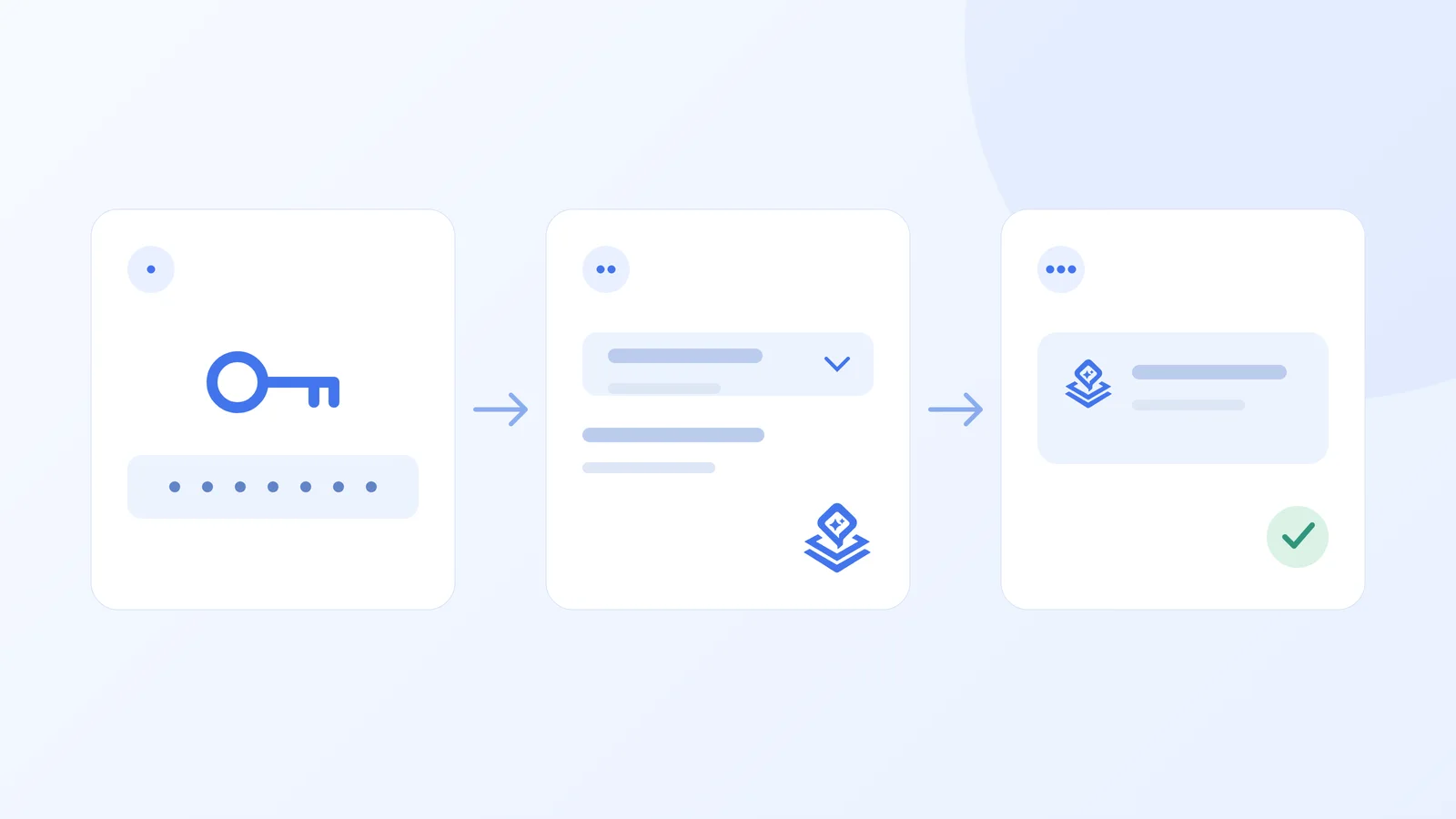
- 1Open More chat actions → API keys, then select your provider.
- 2Paste the key in the password field and save it. The saved list shows a masked key.
- 3Choose a model for that provider beside the message input. Its key must match the provider you selected.
- 4Open Model options to choose supported thinking levels or enable web search. More thinking and searches can add provider costs.
Make your first request and review the result
Start with “How much plan capacity have I used?” in dashboard chat. For map work, open a map and ask “Suggest filters for these rooms” or attach a reference file. Image-based placement needs a model marked Images; text-only models can work with explicit coordinates. Check the proposal, apply it, and save the draft. Publish separately after previewing. The Pinny guide gives more ideas.
Manage your keys, history, and usage
Keys are encrypted before storage and used by Layerpin’s server for your provider requests. Replace or remove them in API keys; revoke compromised keys with the provider. Saving a key does not test it: the provider checks it when you send a message. If a request fails, follow the specific key, model access, quota, or rate-limit message.
Use Chat history to return to conversations and Token usage to explore a date range and estimated provider costs. Deleting a chat does not delete its usage records. Provider invoices can differ because of caching, images, search, region, or discounts. Your Layerpin plan and provider API charges are separate.

Ready to build an interactive map?
Build the map privately, review it in the visitor view, then publish when it is ready to share. No credit card needed.
Start building for free