Markers vs. Shapes: Choosing the Right Map Item
Master the strategic use of pins, polygons, rectangles, polylines, and labels to create clean, intuitive interactive maps that communicate spatial hierarchy effortlessly.
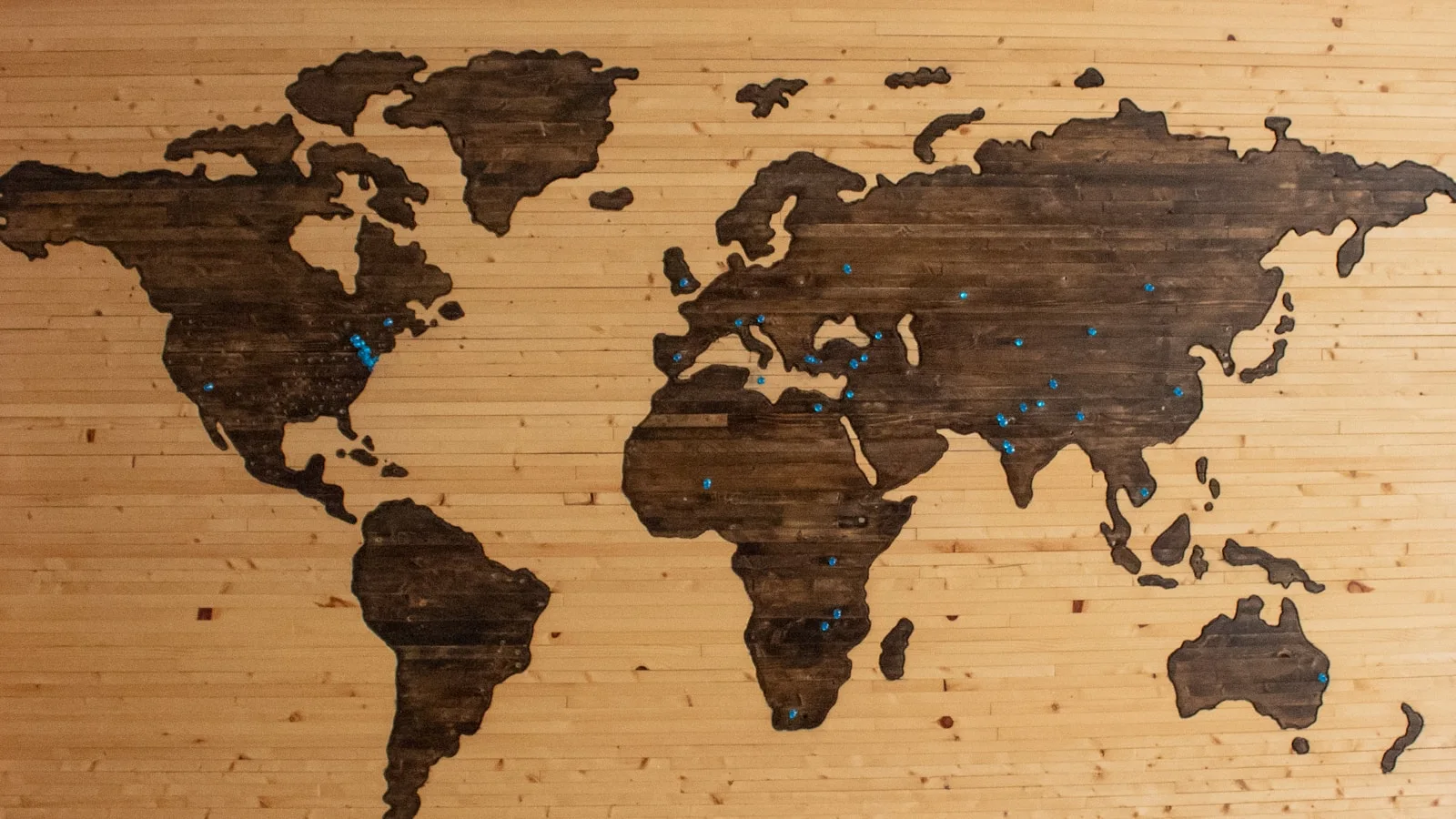
The core rule: Points for destinations, areas for territory
The most common mistake on interactive maps is overusing pin markers for large geographical zones, or conversely, drawing tiny shapes for pinpoint objects. Choosing the correct map element fundamentally determines how quickly visitors digest your layout.
Use Marker Pins when the location is a single discrete point: an entrance gate, an information kiosk, a scenic viewpoint, a piece of machinery, or a specific desk. A marker pin answers the question: 'Where exactly is this one thing located?'
Use Shapes (Polygons & Rectangles) when the location occupies a measurable physical area: a retail store lot, a residential land parcel, an office wing, a parking lot, or a protected park zone. A shape answers the question: 'What are the boundaries, footprint, and scope of this space?'
- 1Evaluate whether the visitor needs to find a pinpoint coordinate or understand a bounded area.
- 2Default to marker pins for points of interest under 5% of viewport area.
- 3Default to polygons or rectangles for rooms, buildings, land lots, and zones.
When to use Polylines, Connectors, and Custom Lines
Beyond pins and shapes, Layerpin provides specialized vector line tools: Polylines, Arrows, and Callout Connectors.
Use Polylines for continuous linear features: walking trails, marathon routes, utility pipelines, guided tour paths, and transit lines. Polylines support custom stroke styles, dashes, arrows, and multi-segment vertex editing.
Use Connectors when a map area is too dense to fit labels directly over the item. A leader line connects an off-center title card or icon to the precise coordinate without obscuring underlying architectural artwork.
- 1Select the Polyline tool for paths, boundaries, routes, and utility channels.
- 2Use Callout Connectors for crowded areas to offset labels cleanly.
- 3Adjust line thickness (2px to 6px) and dash patterns to distinguish different path types (e.g., solid for primary corridors, dashed for emergency egress).
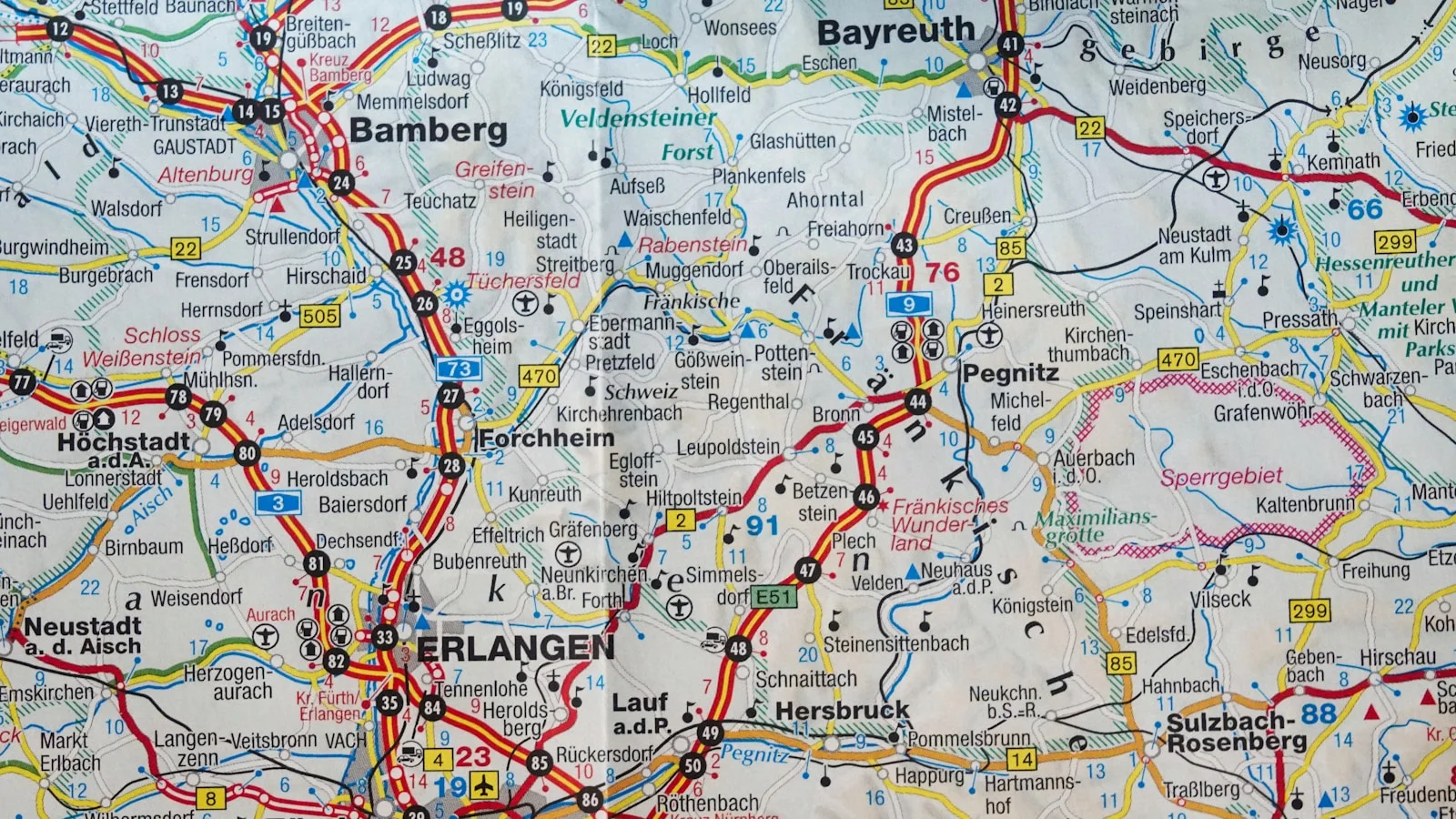
Mastering Shape styling: Opacity, borders, and contrast
A poorly styled shape obscures the map drawing beneath it. A well-styled shape enhances the drawing by providing a clear color tint without hiding underlying labels or textures.
Set default shape fill opacity between 15% and 30%. This subtle wash establishes territory while keeping architectural details readable. Pair it with a crisp 1.5px to 2.5px solid stroke border in a contrasting shade.
On hover and selection, boost opacity to 40-50% and thicken the border to provide clear interactive feedback. Layerpin allows you to set custom color tokens that align directly with your brand guidelines.
- 1Keep base fill opacity low (15-25%) so background maps remain fully visible.
- 2Use distinct stroke colors that pop against both light and dark background imagery.
- 3Configure prominent hover and selected states for seamless interactive feedback.
Combining Markers and Shapes in harmony
High-end interactive maps often combine shapes and markers into cohesive composite systems. For example, draw a polygon around an entire shopping mall wing, and place specific category pins inside it for anchor stores and emergency exits.
Establish a consistent interaction rule: if clicking a polygon opens its leasing info card, clicking child pins inside it should open specific merchant cards. Ensure child pins have higher z-index stacking so they remain easily clickable inside polygon perimeters.
Use Layerpin's layer management panel to reorder elements and lock background shapes, preventing accidental misclicks during editing. See how polygonal booth shapes and area pins coexist seamlessly on the River Beats Festival live demo.

Ready to build an interactive map?
Build the map privately, review it in the visitor view, then publish when it is ready to share. No credit card needed.
Start building for free